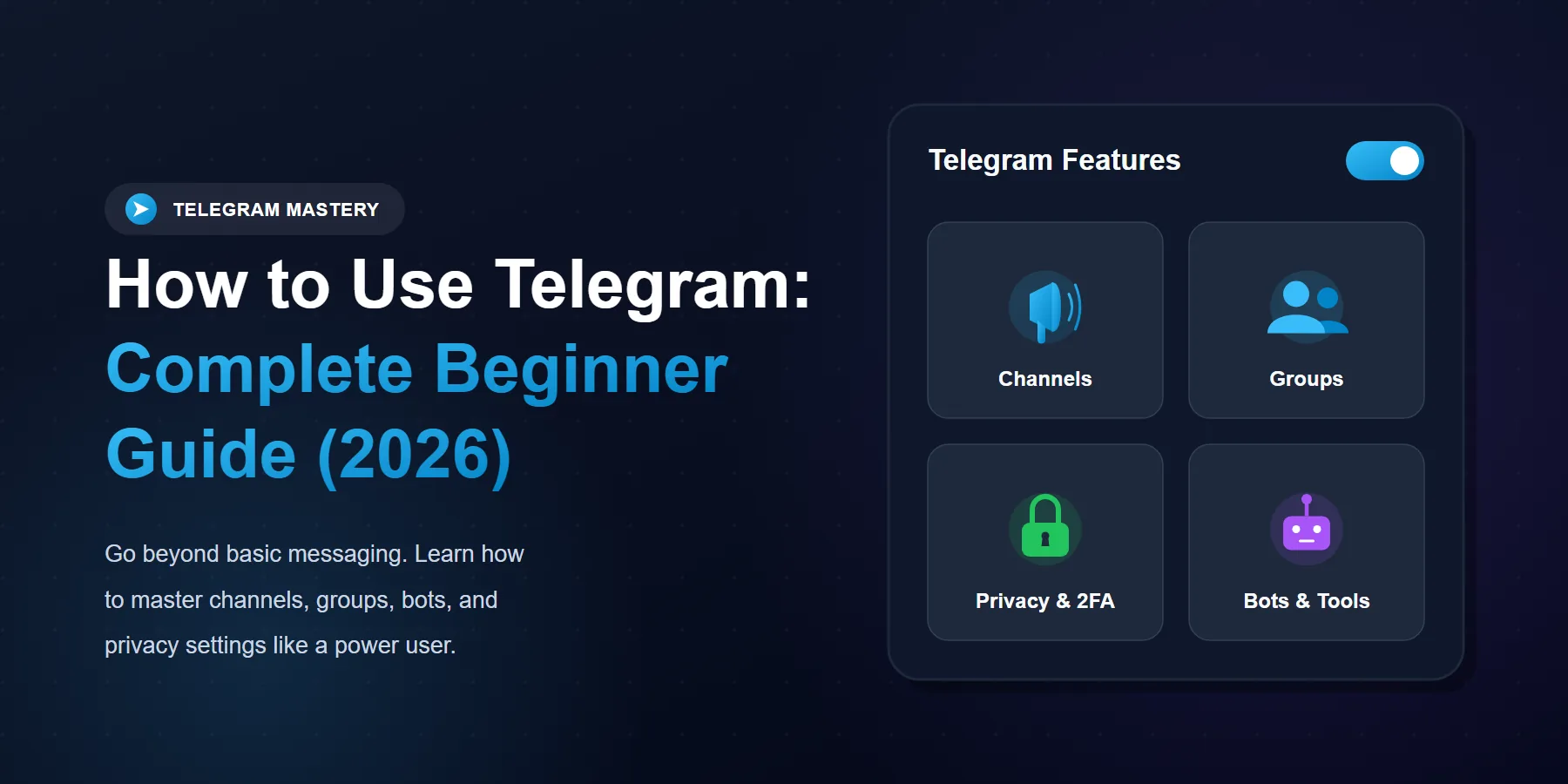
Start with the basics: create your account, secure it with two-step verification, and review your privacy settings before heavy use.
Telegram is more than messaging. Groups, channels, bots, and large file sharing make it useful for both personal and business communication.
Channels are best for one-to-many broadcasting, while groups are built for active conversation and community interaction.
A clean username, clear profile, and smart notification settings make Telegram much easier to manage long term.
Security on Telegram improves when you combine a strong password, device awareness, and privacy controls instead of relying on defaults.
Telegram looks simple at first. Install the app, verify your number, and start chatting. But once you spend a little time inside it, you realize it is much more than a regular messenger. It can act like a private chat app, a team workspace, a broadcast tool, a file vault, and a lightweight automation platform all at once.
Quick answer: To use Telegram properly, create your account, secure it early, learn the difference between chats, groups, and channels, then configure privacy, notifications, file sharing, and bots based on how you actually plan to use the app. The basics are easy. The advantage comes from setting it up well.
What is Telegram and why do so many people use it?
Telegram is a cloud-based messaging platform built for speed, flexibility, and scale. You can message one person, run a group, publish updates to a large audience, share big files, make calls, and connect bots that automate simple tasks.
That is why it appeals to very different users at the same time. Casual users like the clean messaging experience. Businesses like the channel and group model. Power users like the control.
How to create a Telegram account
The starting point is simple. Download the app, verify your phone number, and complete the profile. Still, the quality of your first setup matters more than people think.
Step 1: Download Telegram on your device
Install Telegram from the official app store on Android or iPhone. Desktop versions are also available, which makes the app useful across phone and computer at the same time.
Step 2: Verify your phone number
Open the app, choose your language, enter your phone number, and confirm the SMS or in-app verification code. This activates the account and connects it to your device.
Step 3: Complete your profile properly
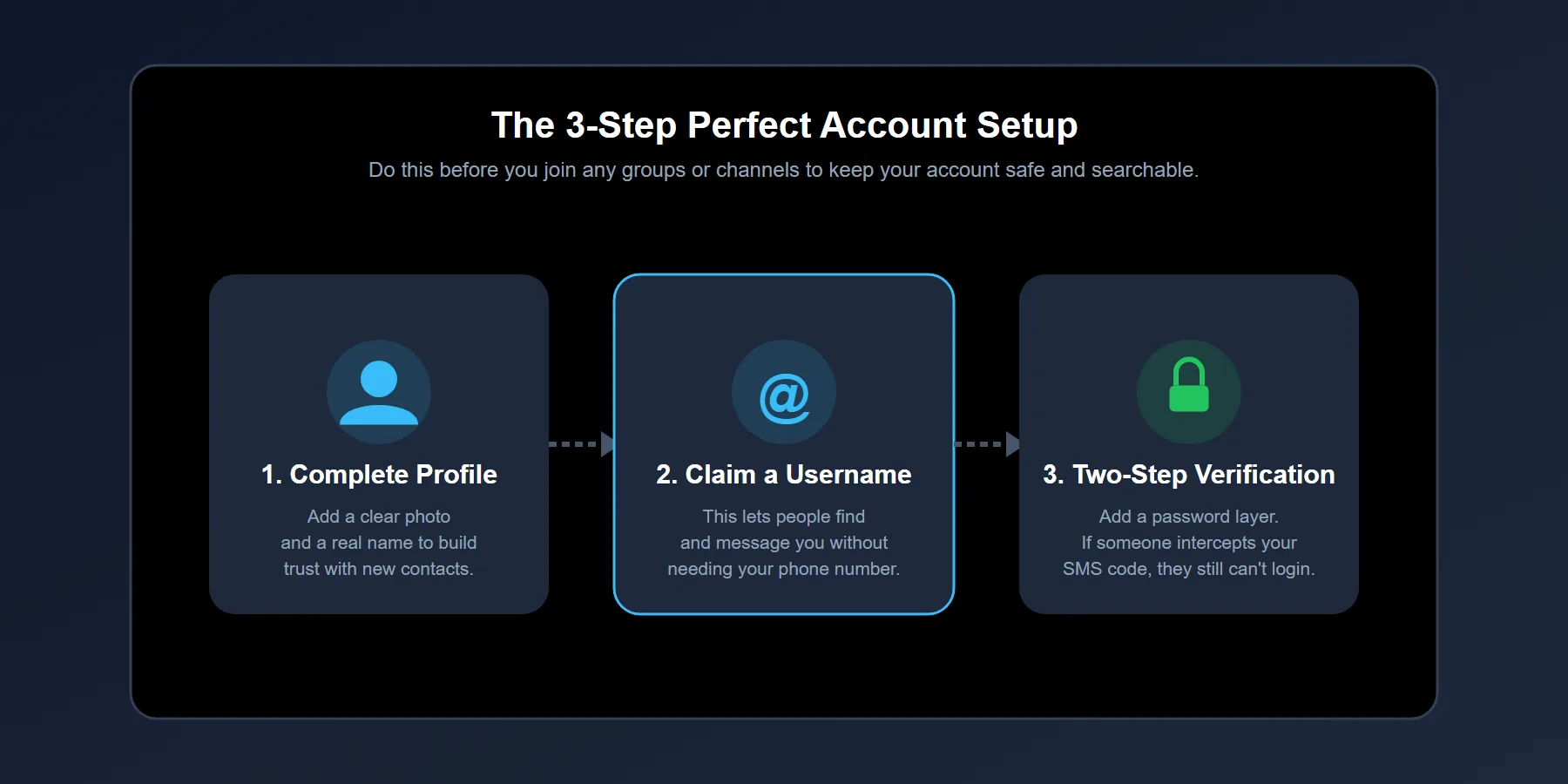
Add a profile photo, a recognizable name, and a username if you want people to find you without sharing your phone number. For personal use, clarity matters. For public use, consistency matters even more.
How do Telegram chats work?
Direct chats on Telegram are straightforward. Tap the new message icon, choose a contact, and start typing. But what makes Telegram better than a basic SMS replacement is how flexible the conversation experience becomes once you use voice notes, attachments, pinned messages, and cross-device syncing together.
Sending a message
Open a conversation, type into the message box, and send. That is the obvious part.
The more useful part is this: Telegram lets you move between text, images, files, stickers, and voice messages quickly, which makes it feel less rigid than older messaging apps.
Sending voice messages
Press and hold the microphone icon to record a voice message. This is one of the fastest ways to communicate when typing is slow or inconvenient.
Organizing important conversations
As your account grows, the chat list becomes crowded fast. Archive what you do not need constantly, pin what you check daily, and mute what does not deserve your attention every hour.
| Feature | Best Use Case | Why It Matters |
|---|---|---|
| Direct chat | One-to-one messaging | Fast private communication |
| Voice message | Quick updates on the go | Saves time versus typing long replies |
| Pinned chat | Priority conversations | Keeps important threads visible |
| Archived chat | Low-priority messages | Reduces clutter without deleting anything |
How to create a Telegram group
Groups are where Telegram starts to feel powerful. They are built for conversation, not just delivery. That makes them useful for friends, teams, clients, communities, and niche discussion hubs.
Step 1: Start a new group
Tap the new chat button and choose New Group. Then select the contacts you want to add.
Step 2: Name the group clearly
Choose a name people will understand immediately. Vague names look harmless at first, but they create friction later when members try to find the group again.
Step 3: Set the tone early
Add a group photo, a short description, and clear expectations if the group is professional or community-based. The first few days shape the long-term behavior more than most admins expect.
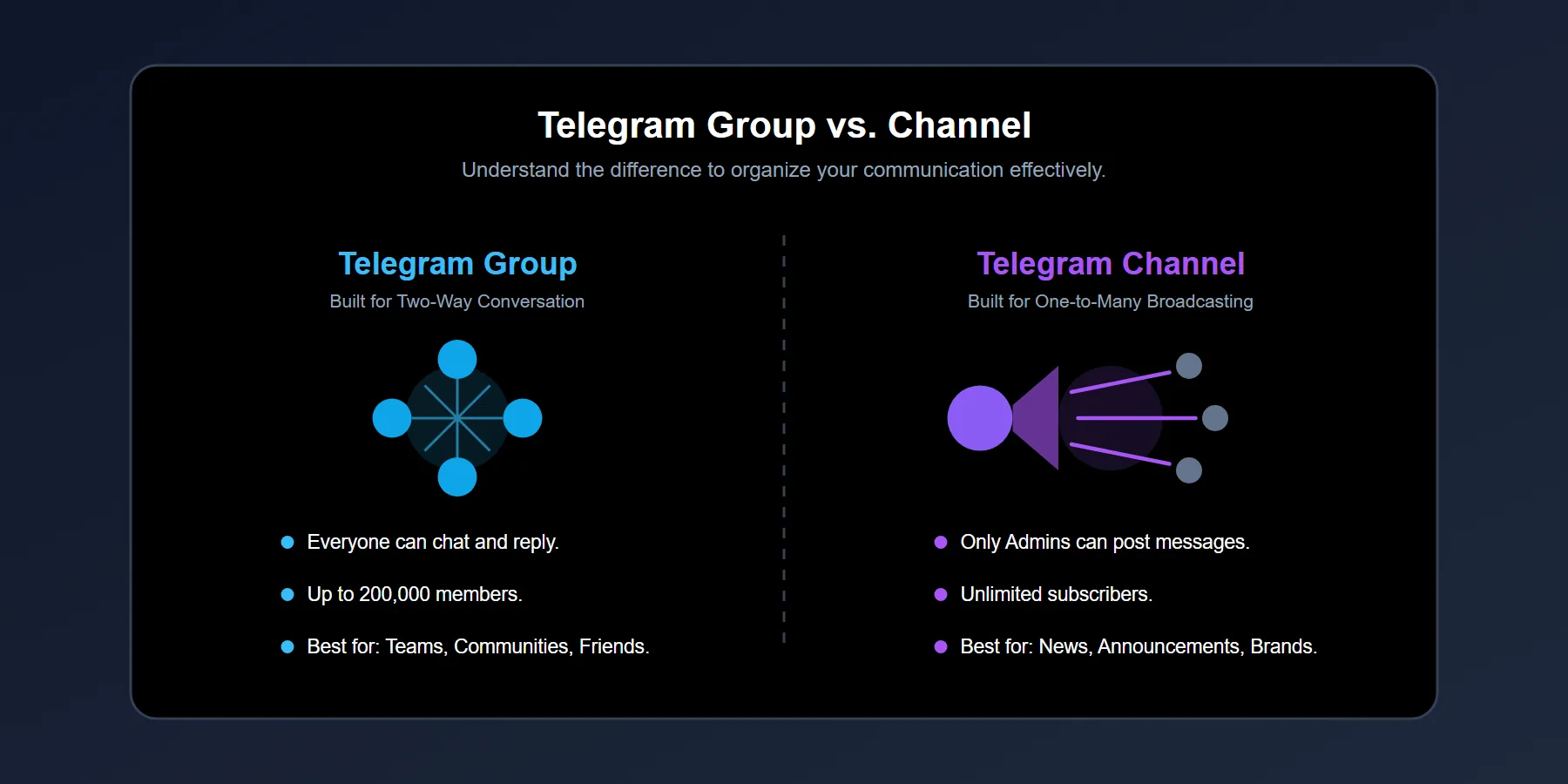
Telegram group vs channel: what is the difference?
This is one of the most important beginner questions. Groups and channels are not interchangeable.
A group is built for member interaction. A channel is built for broadcasting updates to an audience.
| Type | Main Purpose | Who Talks? | Best For |
|---|---|---|---|
| Group | Conversation | Members and admins | Communities, teams, friend circles |
| Channel | Broadcasting | Mainly admins | Announcements, content distribution, brand updates |
If you want discussion, use a group. If you want controlled distribution, use a channel. Many brands and creators eventually use both together.
How to create a Telegram channel
Channels are ideal when you want to publish without turning every update into a chaotic thread. News pages, brands, community leaders, course creators, and service providers use them constantly for that reason.
Step 1: Create the channel
Tap the new chat button and select New Channel. Add the channel name, a short description, and a profile image that looks trustworthy.
Step 2: Decide whether it is public or private
A public channel is discoverable and can be shared more easily. A private channel is better when access needs to stay controlled.
Step 3: Publish with consistency
Do not treat a channel like a dump folder. Publish with structure. Clear titles, readable formatting, and a consistent tone make the channel feel intentional.
How to send files on Telegram
File sharing is one of Telegram's most practical strengths. You can send documents, photos, videos, PDFs, and other large files without the app feeling slow and cramped.
Sending a file
Open a chat, tap the attachment icon, choose the file, and send it. That covers the basic action.
The smarter move is naming files clearly and organizing shared content inside the right chats or channels so people can find things later instead of asking for them again.
Downloading received files
Tap the file and download it to your device. On desktop, Telegram can become a surprisingly useful temporary archive for work notes, media assets, or shared documents.
How to make voice and video calls on Telegram
Telegram also supports voice and video calling. Open a conversation, tap the phone icon for audio or the camera icon for video, and the call begins.
For many users, this removes the need to jump between multiple apps for messaging and live communication. It is one more reason Telegram becomes a daily-use tool once set up correctly.
What privacy and security settings should you change first?
This is where beginners often make the biggest mistake. They assume the default settings are enough. Sometimes they are. Often they are not ideal for how you actually use the app.
Enable two-step verification
Go into settings, open privacy or security options, and activate two-step verification. This adds another layer beyond your phone-based login and reduces the chance of simple account compromise.
Control who can see your details
Review who can see your phone number, profile photo, and last seen status. You do not need to expose everything to everyone just because the account is active.
Check active sessions
If you log into Telegram from multiple devices, review active sessions from time to time. It is a simple habit that catches forgotten or suspicious logins early.
How do Telegram bots work?
Bots are automated accounts that perform simple tasks. Some send alerts. Some manage communities. Some run utilities, reminders, menus, or information lookups.
You do not need bots to enjoy Telegram. Still, once you understand them, they can save real time.
How to find a bot
Use the search bar and type the bot's name. If it is the right one, open the chat and press Start.
How to use a bot safely
Read what it does before giving it access to anything important. Not every bot is equally useful, and not every bot deserves trust by default.
Why does Telegram feel better once it is organized?
Because Telegram scales quickly. One day it is just a messaging app. A week later, you have direct chats, muted groups, public channels, saved files, and maybe a few bots. Without basic organization, the experience becomes noisy.
The people who enjoy Telegram most usually do three things well: they set up security early, separate groups from channels intelligently, and keep notifications under control.
Best beginner setup for daily use
If you want a practical starting point, do this: finish your profile, enable two-step verification, pin your most important chats, mute low-priority groups, create a clean username, and decide whether you need a group, a channel, or both.
That setup solves most of the friction new users hit in their first month.
Why does this approach work in 2026?
Because Telegram is no longer used only for private messaging. It now sits at the intersection of communication, content distribution, community management, and lightweight workflow automation. Users who treat it like a full communication system get more from it than users who leave everything on default.
Final takeaway
Telegram is easy to enter and surprisingly deep to use well. Create the account, secure it early, learn the difference between chats, groups, and channels, then shape the app around your real needs instead of using every feature at once.
That is the beginner move that actually saves time. Not more features. Better setup.