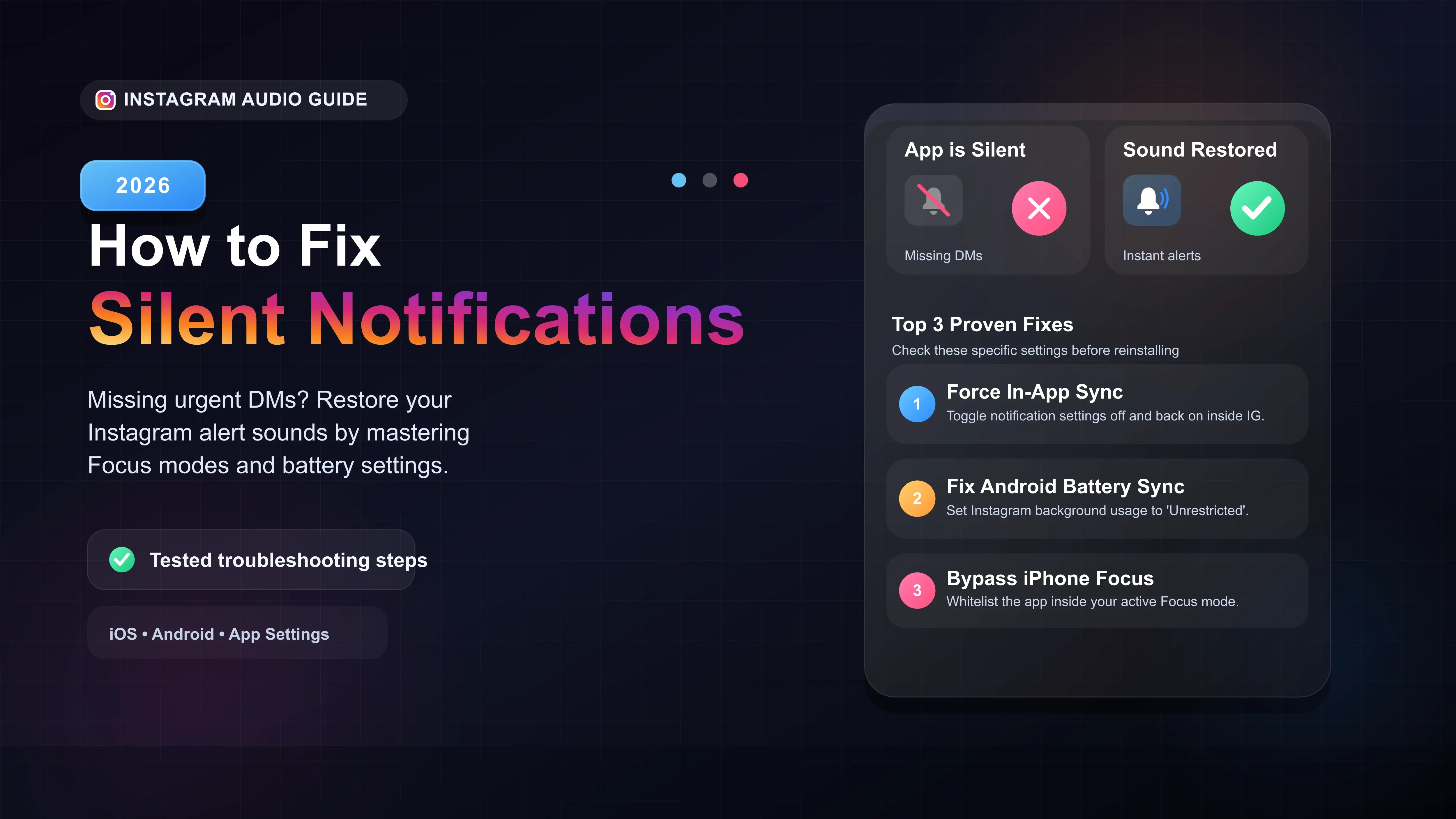
Check the native Instagram settings to force a server sync by toggling notifications off and on.
On Android, change the Instagram app battery setting to Unrestricted so it can play sounds in the background.
On an iPhone, whitelist the Instagram app inside your active Focus Modes.
Ensure your phone's physical ringer volume is turned up and not on silent mode.
Why Is Your Instagram App Completely Silent?
Missing an urgent direct message because your phone failed to play a notification sound is incredibly frustrating. In our testing, the issue is rarely a broken speaker. Smartphone operating systems aggressively manage battery life and screen focus, which frequently mutes third-party app alerts.
Here is exactly how to restore your notification sounds on both iOS and Android.
1. The In-App Sync Trick
Sometimes the glitch is entirely within Instagram's own backend settings. The app occasionally resets sound preferences after a major software update.
- Open your Instagram profile and tap the three lines in the top right.
- Navigate to Settings and privacy > Notifications.
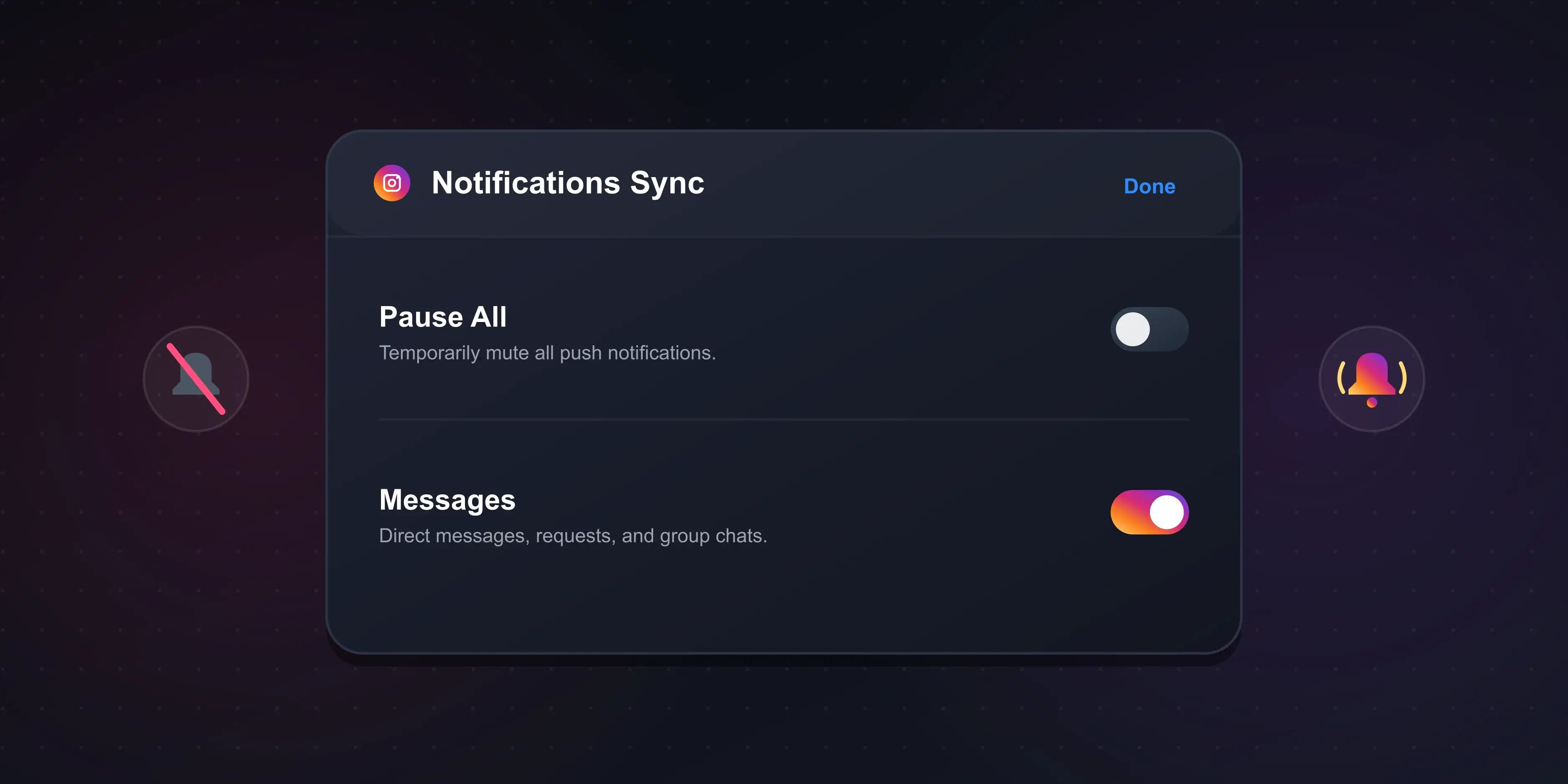
- Ensure the Pause All switch is turned off.
- Go into Messages. Toggle the switches off, close the app, and then turn them back on. This forces a server sync.
2. Fix for Android: Disable Battery Optimization
If you use an Android device, the operating system forcefully puts background apps to sleep to save battery. When Instagram is asleep, it cannot trigger the sound file for a notification.
- Go to your phone's Settings > Apps > Instagram.
- Tap on Battery.
- Change the setting from Optimized to Unrestricted. This gives Instagram permanent permission to play sounds instantly.
3. Fix for iPhone: Bypass Focus Modes
Apple users frequently experience silent Instagram notifications due to custom Focus Modes (like Work or Sleep) that silently block non-essential apps.
- Open your iPhone Settings and tap Focus.
- Select your active Focus profile.
- Under Allowed Notifications, tap Apps.
- Tap the + icon and add Instagram to the whitelist. Now, a DM will ping with a sound even if you are in Work mode.
Summary of Notification Fixes
| Device | Common Culprit | Quick Fix |
|---|---|---|
| iPhone (iOS) | Focus Modes blocking alerts | Whitelist Instagram in Focus Settings |
| Android | Aggressive battery saving | Set battery usage to Unrestricted |
| Both Platforms | App out of sync with servers | Toggle notification settings off and on |