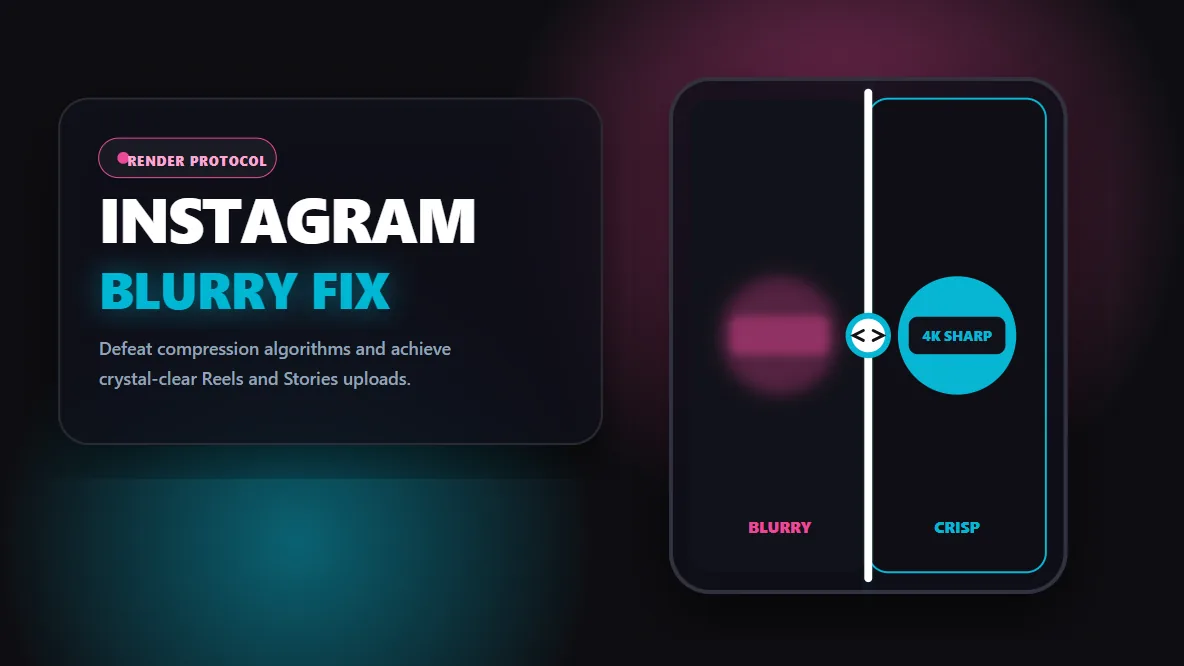
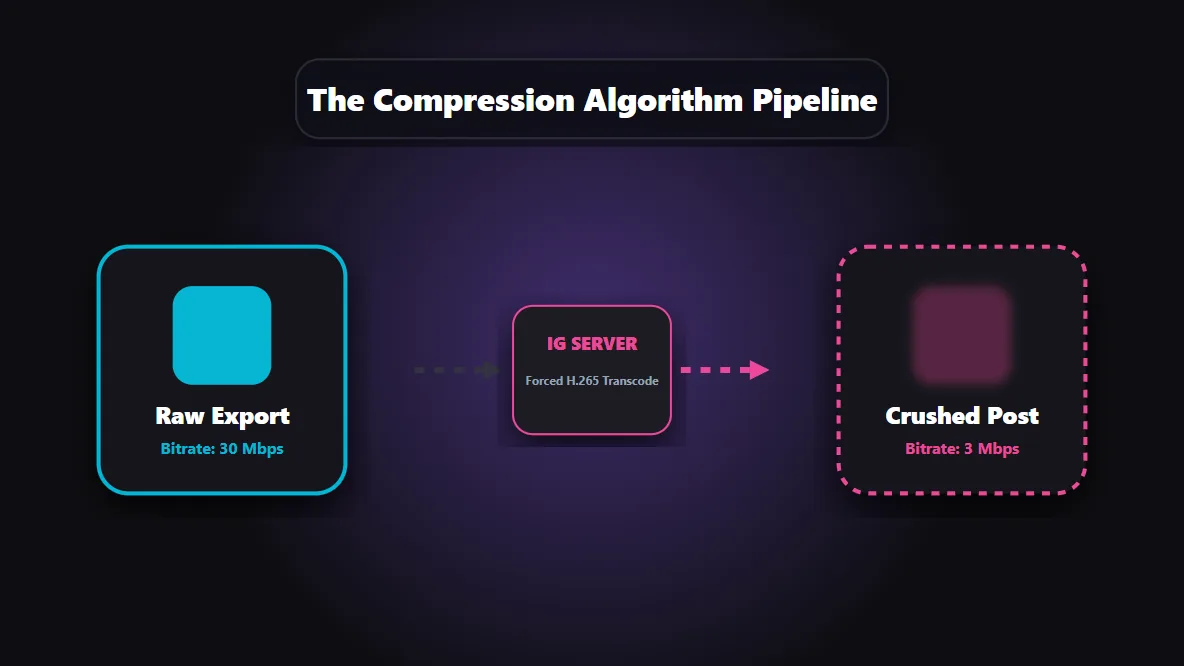
Instagram aggressively compresses files to save server bandwidth. If your source file is weak, the algorithm destroys its remaining visual data.
Transferring videos through messaging apps (WhatsApp, Telegram) ruins your bitrate long before the video reaches the Instagram app.
Uploading without the native 'High Quality Uploads' toggle enabled forces Instagram to prioritize fast upload speed over visual sharpness.
Exporting in massive 4K resolutions forces Instagram to aggressively downscale your video, often resulting in a softer image than a native 1080p export.
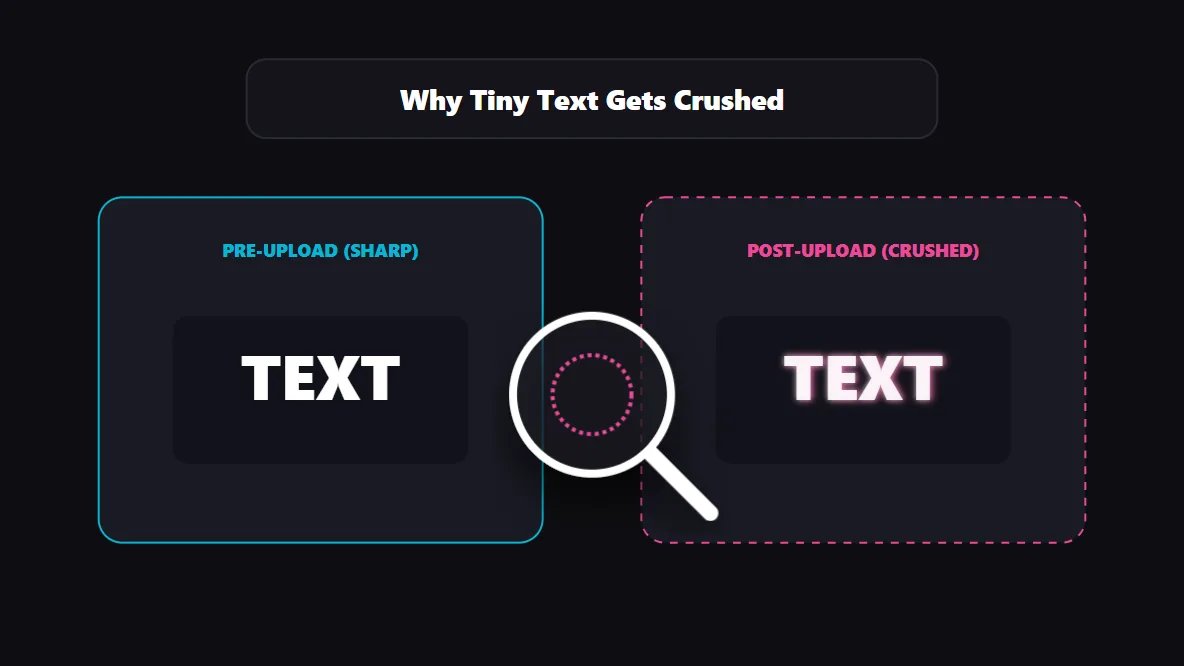
Text and delicate graphic overlays suffer the most from compression artifacts; using thicker fonts and higher contrast prevents pixelation.
You spend hours editing a video. The color grading is flawless, the text is crisp, and it looks immaculate on your phone's camera roll. But the second you publish it to Instagram, the quality disintegrates. The faces look soft, the motion gets pixelated, and the text edges bleed into a blurry mess.
This widespread issue frustrates videographers, brands, and creators daily. The reality is that blurry Instagram uploads are almost never a temporary app bug. They are the direct result of a brutal platform compression pipeline reacting to fragile source files, suboptimal export settings, or destructive transfer habits.
The Instagram Rendering Pipeline: Why Quality Drops
Instagram manages millions of uploads an hour. To keep servers running and ensure videos load instantly for users on weak 4G networks, the platform utilizes aggressive compression algorithms. It does not publish the pristine 150MB file you exported from Premiere Pro; it crushes it into a 15MB web-optimized package.
The problem arises when your file lacks the structural integrity to survive that compression. If your video already suffers from low bitrate, artificial sharpening, or improper dimensions, Instagram’s processing will amplify those flaws, turning slight softness into visible pixelation.
The Transfer Trap: Ruining Videos Before the Upload
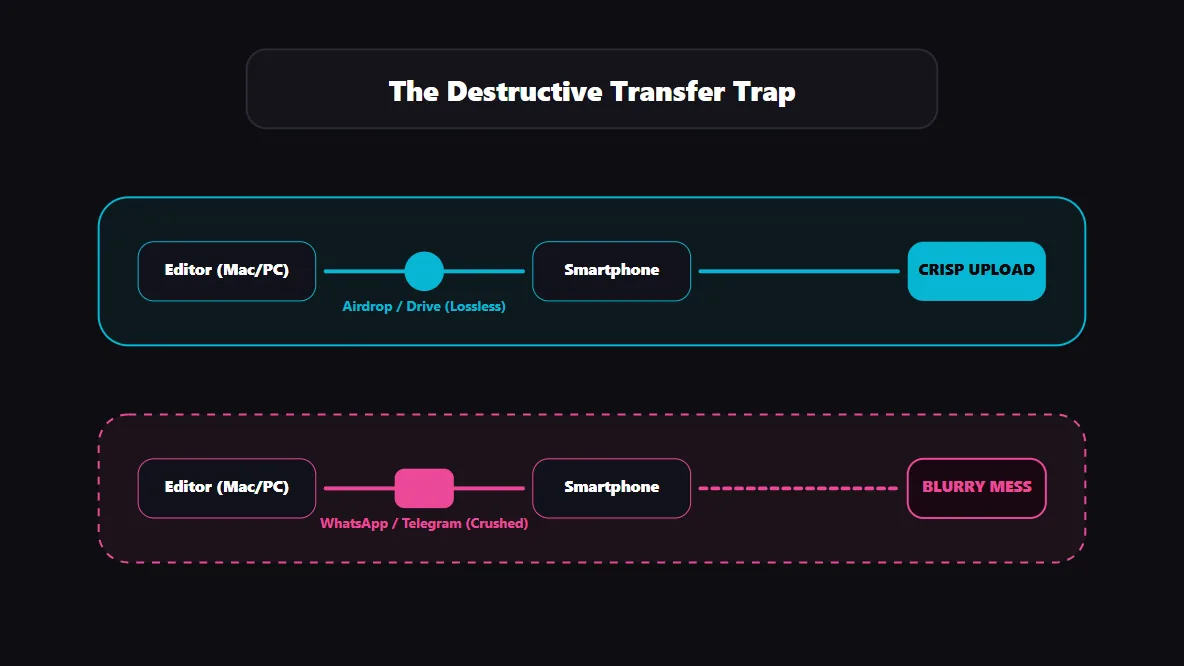
A pristine export means nothing if your transfer method destroys the data. One of the most common reasons for blurry Reels is moving the video from a desktop editor to a smartphone using messaging apps like WhatsApp or Telegram. These apps automatically re-encode media to save space, secretly stripping away your video's bitrate.
When you eventually upload that file, Instagram compresses an already-compressed video. This double-compression creates "muddy" visuals. Always transfer files using lossless methods like AirDrop, Google Drive, or a direct cable connection.
The Exact 2026 Export Settings for Maximum Sharpness
Many creators mistakenly believe that exporting in 4K resolution guarantees a sharp upload. In reality, Instagram caps vertical video dimensions at 1080x1920 pixels. When you feed a massive 4K file into the app, you force Instagram's algorithm to handle the downscaling, which it does poorly.
To retain maximum sharpness, you must control the scaling yourself. Exporting a native 1080x1920 file with a stable frame rate leaves Instagram with less processing work, preserving your original pixels.
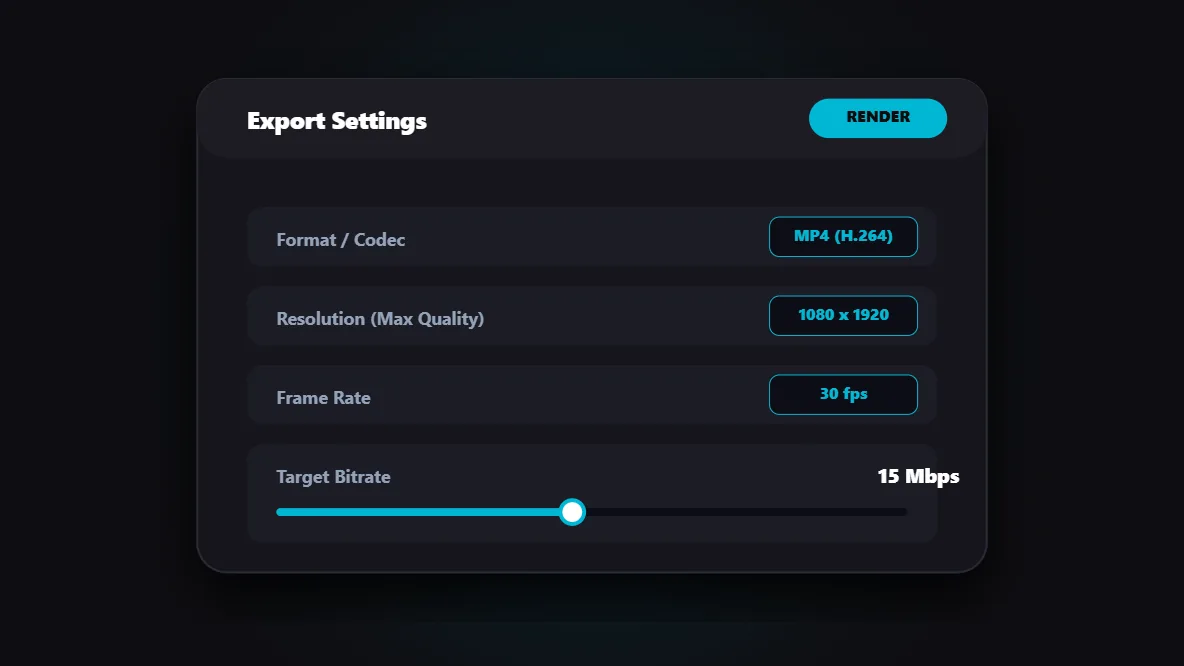
Recommended Render Specs:
- Resolution: 1080 x 1920 (Vertical 9:16)
- Codec: H.264 (Highly stable for web platforms)
- Frame Rate: 30 fps (Matches native social media playback)
- Bitrate: VBR, 15-25 Mbps (High enough to retain detail, small enough to prevent extreme platform throttling)
The Hidden Toggle: High-Quality Uploads
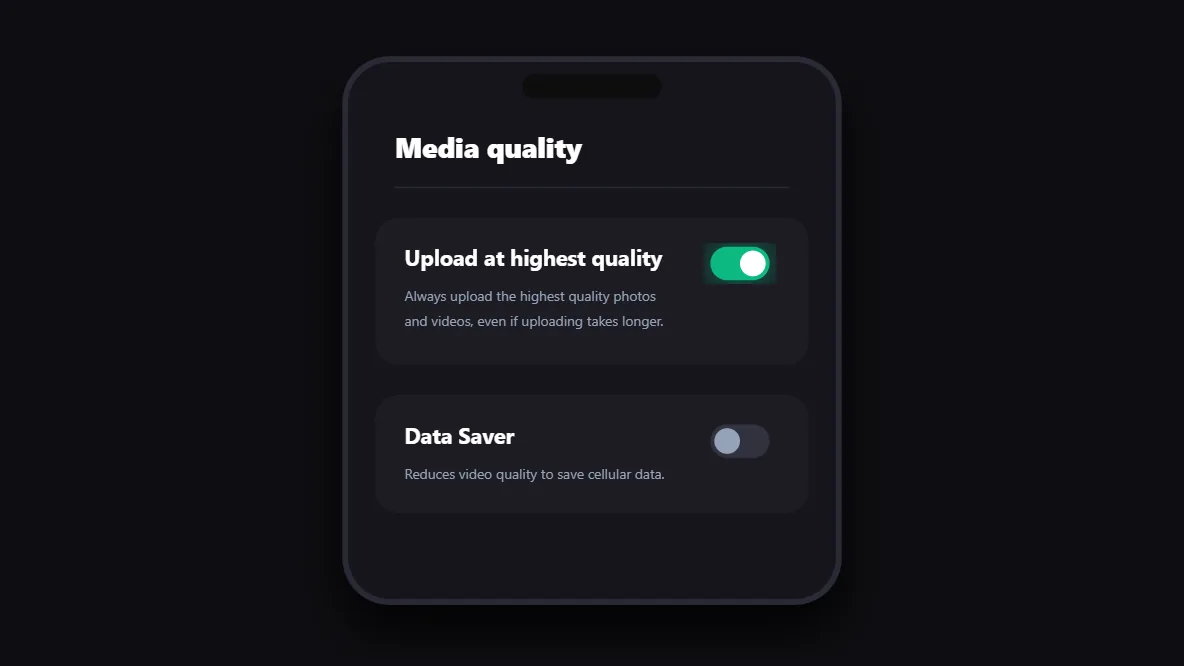
By default, Instagram prioritizes upload speed and data conservation over visual fidelity. If you are uploading a heavy video while connected to a weak cellular network, the app will intentionally bottleneck the resolution to ensure the post goes through without timing out.
You must manually override this behavior in the app settings. Navigating to Settings > Data Usage and enabling "Upload at highest quality" forces the app to preserve your file's integrity, regardless of how long the upload process takes.
Why Text and Graphics Suffer the Most
Digital compression algorithms hate sharp, high-contrast edges—which is exactly what text is. When a video is compressed, the data around fine lines and tiny fonts degrades, creating a "halo" or blocky artifact effect known as pixelation.
To combat this, avoid ultra-thin fonts or microscopic text. Utilizing bolder typefaces and ensuring strong contrast between the text and the background allows the graphics to survive the compression pipeline intact.
Native Camera vs. Third-Party Editing Apps
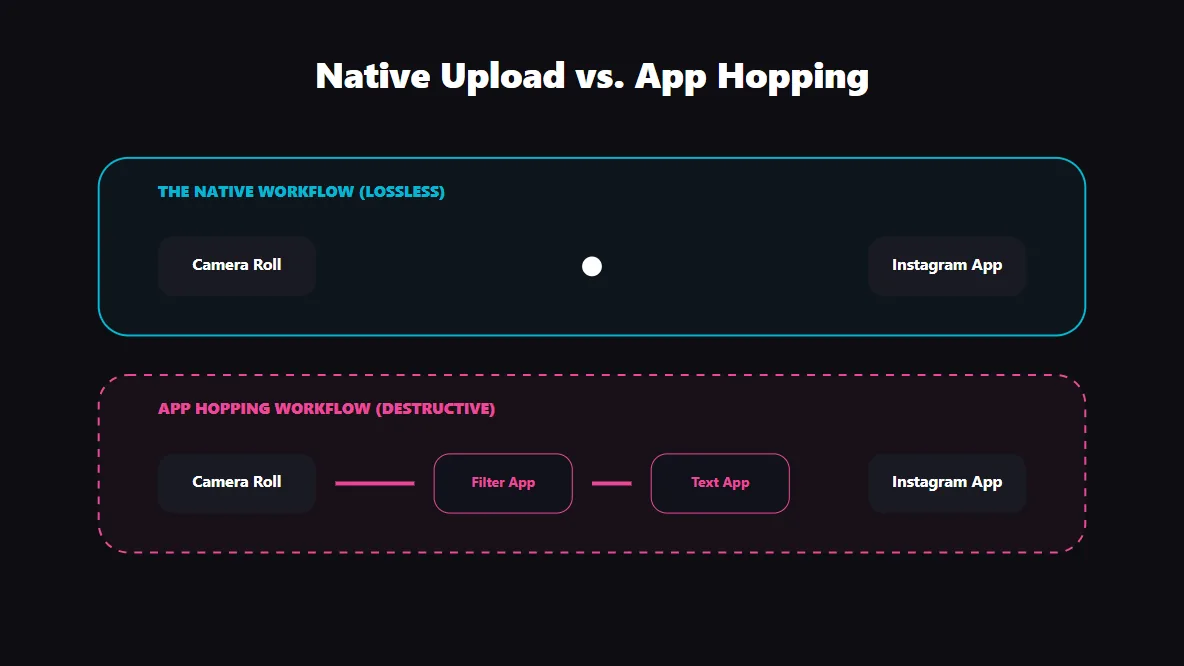
Uploading directly from your camera roll is significantly safer than passing your video through multiple third-party editing apps on your phone. Every time you import a video into a mobile editor, add a filter, and save it, the file undergoes another round of compression.
If you must edit on your phone, stick to high-end applications like CapCut or LumaFusion, and ensure their export settings are locked to 1080p. Avoid saving videos directly from TikTok or Snapchat to post on Instagram, as the watermark and re-encoding process will ruin the visual clarity.
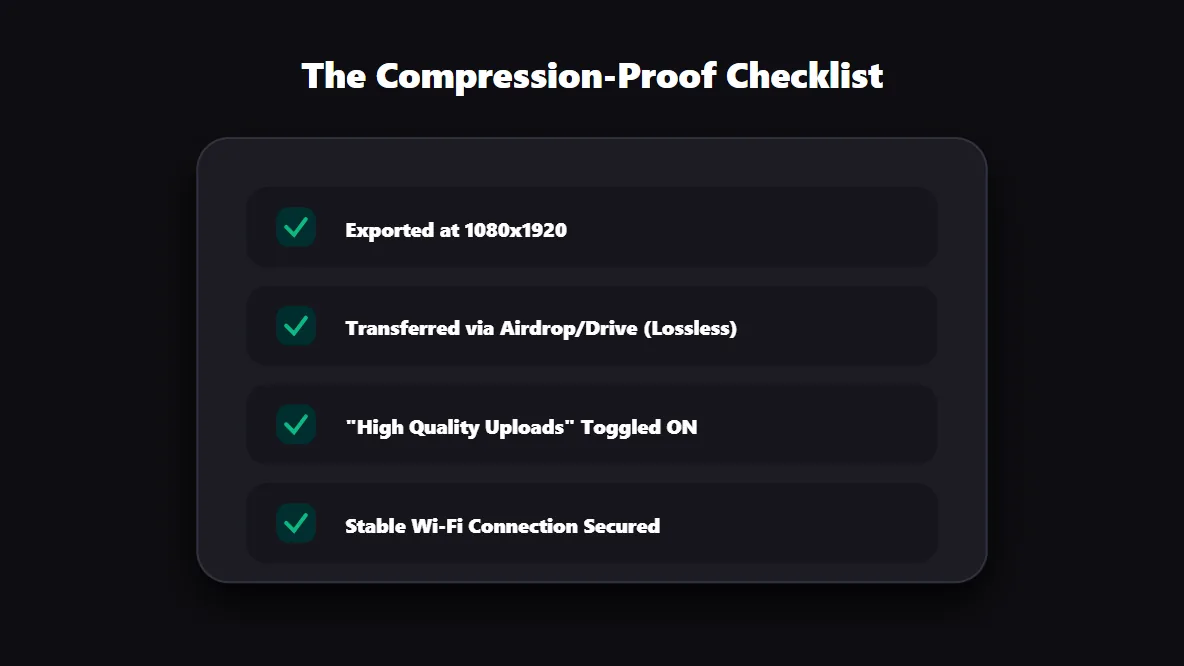
The Final Pre-Upload Checklist
Reversing the zero-viewer glitch and maintaining premium video quality requires discipline. It is not about buying a better camera; it is about protecting the data your camera captures. Implement a strict pipeline: export cleanly at 1080p, transfer losslessly, enable high-quality settings, and upload via a strong Wi-Fi connection.