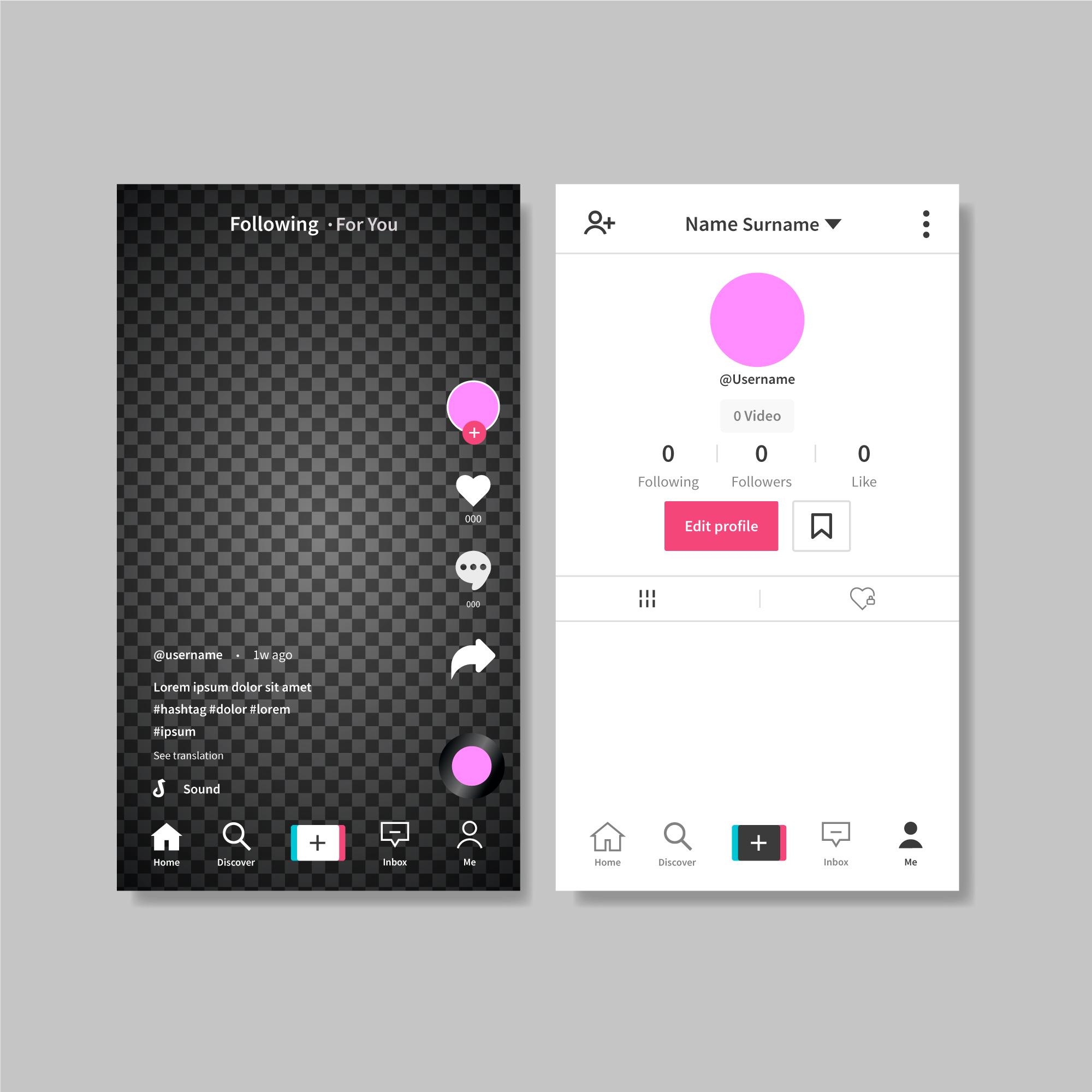
Why Your Profile Picture is Crucial for TikTok Growth
On TikTok, your profile picture is more than just an avatar; it is your brand's first impression. When you leave a comment on a viral video, your profile picture is the only thing driving users to click on your name. If you are using a low-quality image, a blank avatar, or a chaotic background, you are losing out on thousands of potential profile visits and followers.
Whether you want to upload a professional headshot, a brand logo, or a dynamic video avatar, changing your TikTok profile picture takes only seconds. Here is the ultimate guide to optimizing your profile.
Step-by-Step: Changing Your Profile Picture or Video Avatar
TikTok gives you the option to upload a static image or a 6-second video loop (which plays automatically when people visit your page). Here is how to update it in 2026:
- Open the TikTok app and tap the Profile icon in the bottom right corner.
- Tap the large Edit profile button.
- At the top, you will see two options: Change photo and Change video.
- Select your preferred option. Choose a file from your camera roll or take a new photo instantly.
- Pinch and drag the image to crop it perfectly inside the circular frame.
- Tap Save.
Pro Tip: How to Make a Transparent TikTok Profile Picture
Have you ever seen a creator whose profile picture seamlessly blends into the dark background of the TikTok video player? This is a highly popular trick that makes your account look incredibly aesthetic. Here is how to do it:
- Go to a free background removal website (like remove.bg or use the iOS 16+ photo cutout feature).
- Upload your photo and remove the background.
- Save the image to your phone as a .PNG file (JPEGs do not support transparency).
- Upload this specific PNG file to TikTok using the steps above. Note: This trick works best for Android users, as iOS sometimes forces a white background on PNG uploads.
Troubleshooting: Why is My Profile Picture Not Updating?
The most common complaint users have is that they changed their picture, but their old photo is still showing on their profile. Do not panic; your account is not broken.
This is a cache issue. TikTok's servers cache (store) profile pictures to make the app load faster. It can take up to 24 hours for the servers to refresh globally. To force the update on your end:
- Go to Settings and privacy > Free up space.
- Tap Clear Cache.
- Force close the TikTok app and reopen it. Your new, high-quality profile picture should now be visible to everyone!


