.jpg)
Why Custom Story Backgrounds Matter
Have you ever shared a feed post to your Instagram Story, only to find that the default gradient background completely clashes with your brand’s aesthetic? You are not alone. Customizing your background color is one of the easiest ways to make your Stories look professional, cohesive, and visually striking.
While Instagram doesn’t offer a simple "change background" button, there are a few clever workarounds using the app's native drawing tools. Here is your ultimate guide to mastering Instagram Story backgrounds.
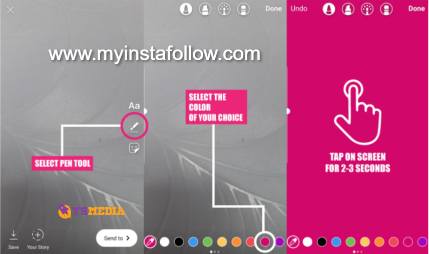
Method 1: Creating a Solid Color Background
If you want to share a feed post to your Story or just want a blank, solid-colored canvas to write text on, this is the quickest method:
- Start your Story: Take a random photo, upload an image, or click "Add post to your story" from your feed.
- Open the Draw Tool: Tap the three dots (options) in the top right corner of your screen and select Draw (the squiggly line icon).
- Select the Pen Tool: Ensure the first pen icon at the top of the screen is selected.
- Pick Your Color: Choose a color from the palette at the bottom. Tip: Tap and hold the color palette to open a custom color spectrum, or use the eyedropper tool to pick a specific color directly from your photo!
- Tap and Hold: Press and hold your finger anywhere on the screen for about 2-3 seconds. The entire screen will instantly fill with your chosen solid color.
Method 2: Creating a Translucent (See-Through) Background
Want to tease a new post but keep it slightly mysterious? You can create a translucent color overlay that lets your photo peek through underneath.
- Follow the same initial steps to open the Draw tool.
- Instead of the regular pen, tap the Highlighter icon (the second pen from the left, which has a thicker, glowing tip).
- Pick your color, then tap and hold the screen. Instead of a solid block, you will get a beautiful, semi-transparent color wash over your image.
The "Eraser Reveal" Trick for Creators
Once you have created your solid or translucent background over a photo, select the Eraser tool (the rightmost icon in the draw menu). Swipe your finger across the screen to erase parts of the color overlay and reveal the photo underneath. This is a fantastic, creative way to highlight specific parts of a new product launch or build anticipation for a big announcement.


